
Few Windows errors are as frustrating as the Inaccessible Boot Device error. One moment your computer is working perfectly, and the next you’re staring at a blue screen, wondering why your system won’t start. This error commonly appears in both Windows 10 and Windows 11 and can prevent users from accessing their files, applications, and important data.
The inaccessible boot device error occurs when Windows loses access to the system drive during startup. As a result, the operating system fails to load properly, causing a Blue Screen of Death (BSOD) and halting the boot process. Fortunately, this problem can often be resolved successfully with the right troubleshooting steps.
Whether the problem is caused by a faulty driver, corrupted system files, incorrect BIOS settings, a failed Windows update, or hard drive issues, several proven solutions can help restore your computer. In this guide, you’ll learn what causes the error, how to diagnose the problem, step-by-step methods to fix it, and practical tips to prevent future boot failures.
Complete List of Solutions to Fix the Inaccessible Boot Device Error
| Service / Step | Description |
|---|---|
| Check recent updates | Identify if a Windows update caused the issue |
| Restart system | Try a basic reboot to clear temporary errors |
| Enter Safe Mode | Boot Windows with minimal drivers |
| Run Startup Repair | Use built-in Windows repair tool |
| Uninstall updates | Remove recent faulty Windows updates |
| Check BIOS settings | Ensure correct storage mode is selected |
| Reset BIOS defaults | Restore factory BIOS configuration |
| Run SFC scan | Repair corrupted system files |
| Run DISM tool | Fix Windows image corruption |
| Check disk health | Identify HDD/SSD issues |
| Run CHKDSK | Repair disk errors and bad sectors |
| Update storage drivers | Fix driver compatibility problems |
| Reinstall drivers | Replace corrupted storage drivers |
| Disconnect external devices | Remove conflicting hardware |
| Check SATA cables | Ensure proper hardware connection |
| Verify SSD/HDD detection | Confirm drive appears in BIOS |
| Rebuild BCD | Repair boot configuration data |
| Repair MBR | Fix master boot record issues |
| System Restore | Roll back to a working state |
| Reset Windows | Reinstall Windows without full wipe |
| Scan for malware | Remove virus-related corruption |
| Check power issues | Ensure stable power supply |
| Test another drive | Diagnose failing hardware |
| Replace faulty SSD/HDD | Fix physical storage failure |
| Backup data | Prevent data loss before repairs |
What Is the Inaccessible Boot Device Error?
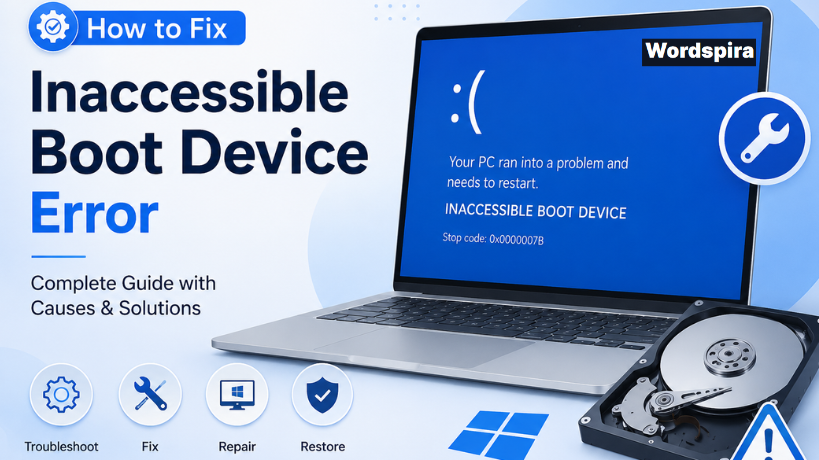
The inaccessible boot device error is a Windows stop code that appears when the operating system cannot communicate with the drive that contains the Windows installation. During startup, Windows needs access to the boot drive to load essential system files.
If it cannot locate or communicate with the drive, the system crashes and displays the error message: “Your PC ran into a problem and needs to restart. Inaccessible Boot Device.” This issue affects both traditional hard drives (HDDs) and solid-state drives (SSDs).
Common Causes of the Inaccessible Boot Device Error
The inaccessible boot device error can occur due to corrupted storage drivers, failed Windows updates, or damaged system files that prevent Windows from accessing the boot drive. Incorrect BIOS settings, hard drive or SSD failures, and problems during disk cloning or SSD upgrades can also trigger this error. Identifying the cause helps you apply the most effective solution and restore normal startup.
How to Diagnose the Inaccessible Boot Device Error?

Before attempting any fixes, it is important to identify the possible cause of the inaccessible boot device error. Think about any recent changes made to your computer. For example, did the problem start after installing a Windows update, adding new hardware, upgrading or cloning your SSD, or modifying BIOS settings?
You should also pay attention to unusual signs, such as strange clicking or grinding noises from your hard drive, which could indicate a hardware failure. Reviewing these factors can help you determine the most likely cause of the error and choose the most effective solution.
Troubleshooting Techniques for the Inaccessible Boot Device Error
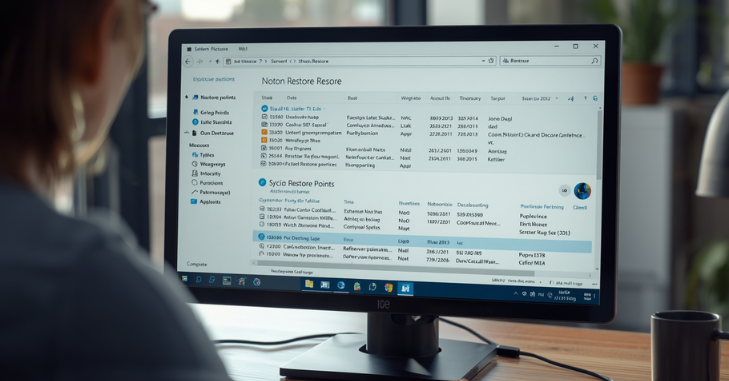
Method 1: Restart Your Computer
Sometimes the error occurs due to a temporary startup issue.
Steps
- Turn off the PC completely.
- Wait 30 seconds.
- Restart the computer.
If Windows starts normally, the issue may have been temporary.
Method 2: Boot into Safe Mode
Safe Mode loads only essential Windows components, making it easier to troubleshoot startup issues.
Steps
- Force shut down the computer during startup three times.
- Windows Recovery Environment (WinRE) should appear.
- Select Troubleshoot.
- Click Advanced Options.
- Choose Startup Settings.
- Press Restart.
- Press 4 or F4 for Safe Mode.
If the computer boots successfully, a driver or software conflict may be responsible.
Method 3: Remove Recently Installed Updates

If the problem started after a Windows update, uninstalling the update may solve it.
Steps
- Enter Windows Recovery Environment.
- Select Troubleshoot.
- Choose Advanced Options.
- Click Uninstall Updates.
- Remove the most recent quality update.
- Restart your computer.
Many users successfully resolve boot issues using this method.
Method 4: Run Startup Repair
Windows includes an automated repair tool that can fix startup-related problems.
Steps
- Open Windows Recovery Environment.
- Navigate to Troubleshoot > Advanced Options.
- Select Startup Repair.
- Choose your Windows account.
- Allow Windows to scan and repair startup files.
After the repair completes, restart the system.
Method 5: Check and Repair System Files
Corrupted system files frequently cause boot errors.
Steps
- Open Command Prompt from Advanced Options.
- Run the following command:
sfc /scannow
- Wait for the scan to finish.
You can also run
DISM /Online /Cleanup-Image /RestoreHealth
These tools automatically repair damaged Windows files.
Method 6: Check the Hard Drive for Errors

Disk corruption can make the boot drive inaccessible.
Steps
Open Command Prompt and run:
chkdsk C: /f /r
This command:
- Scans the drive
- Repairs file system errors
- Identifies bad sectors
- Recovers readable information
The process may take some time depending on drive size.
Method 7: Verify BIOS Storage Settings

Incorrect BIOS settings are a common cause of this error
Steps
- Restart the computer.
- Enter BIOS or UEFI settings.
- Locate storage controller settings.
- Verify that AHCI, RAID, or IDE settings match the original configuration used during Windows installation.
- Save changes and restart.
Changing storage modes without reinstalling drivers often triggers boot failures.
Method 8: Update or Reinstall Storage Drivers
Faulty drivers can prevent Windows from accessing the boot device.
Steps
- Boot into Safe Mode.
- Open Device Manager.
- Expand Storage Controllers.
- Right-click the storage driver.
- Select Update Driver.
If the issue persists:
- Uninstall the driver.
- Restart the computer.
- Windows will reinstall the driver automatically.
Method 9: Rebuild Boot Configuration Data (BCD)
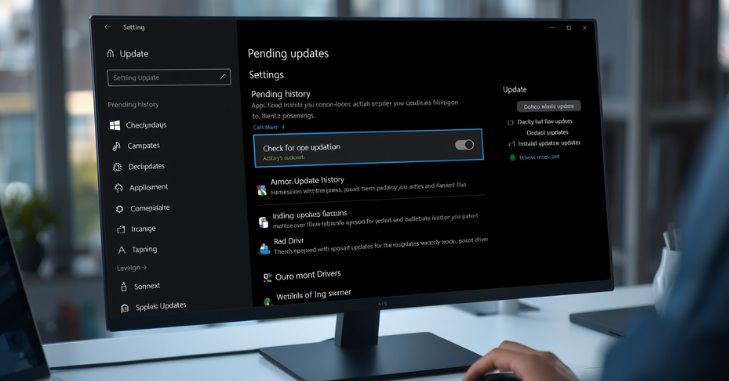
Damaged boot records can stop Windows from loading.
Steps
Open Command Prompt from Recovery Mode and run:
bootrec /fixmbr
bootrec /fixboot
bootrec /scanos
bootrec /rebuildbcd
These commands rebuild essential boot files and often restore startup functionality.
Method 10: Perform System Restore
If a restore point exists, reverting to a previous system state can eliminate the problem.
Steps
- Enter Recovery Mode.
- Select System Restore.
- Choose a restore point created before the error appeared.
- Follow the on-screen instructions.
This method does not affect personal files.
When Hardware May Be the Problem?

If none of the software fixes work, hardware failure could be responsible.
Warning signs include:
- Clicking or grinding noises from the hard drive
- Frequent system crashes
- Extremely slow performance
- Drive not detected in BIOS.
In such cases:
- Check SATA cables and connections.
- Test the SSD or HDD on another computer.
- Use manufacturer diagnostic tools.
- Replace failing hardware if necessary.
Common Causes of the Inaccessible Boot Device Error

The inaccessible boot device error can occur for several reasons. Common causes include corrupted or outdated storage drivers, failed Windows updates, and damaged system files that prevent Windows from accessing the boot drive properly. Incorrect BIOS or UEFI settings, especially changes to AHCI, RAID, or IDE modes, can also trigger this issue.
Hardware problems such as a failing HDD or SSD, or a loose drive connection, may interrupt communication with the boot device. In some cases, the error appears after cloning a drive, upgrading storage hardware, or installing incompatible software or drivers. Identifying the underlying cause is essential for applying the correct fix and restoring normal startup functionality.
Conclusion
The inaccessible boot device error in Windows 10 and 11 can seem alarming, but it is often recoverable with the right troubleshooting approach. Whether the problem stems from corrupted drivers, damaged system files, incorrect BIOS settings, failed updates, or storage device issues, the solutions outlined above can help restore access to your computer.
Start with simple fixes such as restarting the system, booting into Safe Mode, and running Startup Repair. If necessary, move on to advanced solutions like repairing system files, rebuilding boot records, or checking BIOS settings. By following preventive best practices and maintaining regular backups, you can significantly reduce the risk of future boot failures and keep your Windows system running smoothly.
Want to know about How to Check What Motherboard I Have: The Ultimate Beginner-Friendly Guide for Every PC User Check out our Tech category.
Frequently Asked Questions (FAQs)
Yes. It prevents Windows from accessing the boot drive, which stops the operating system from loading properly.
Yes. Hardware failures, bad sectors, and SSD malfunctions are common causes of this issue.
Most repair methods do not affect personal files. However, backing up important data whenever possible is strongly recommended.
Yes. In some cases, incompatible updates or driver conflicts after updates can cause boot failures.