

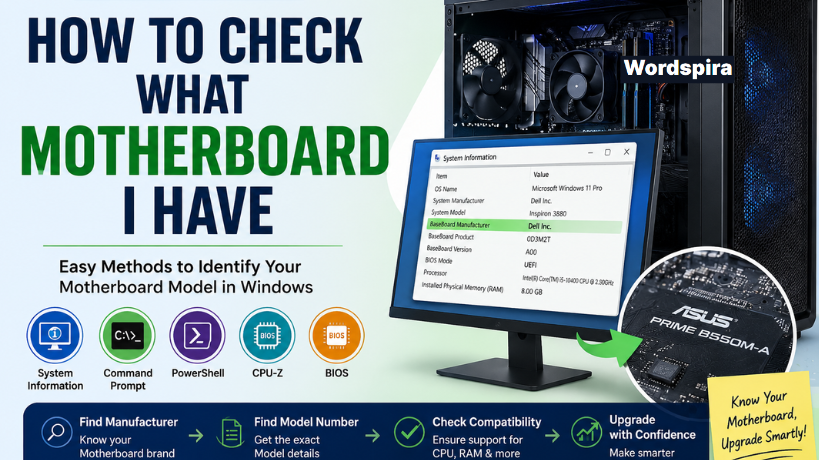
If you’re planning to upgrade your computer, install more RAM, replace your processor, or troubleshoot hardware issues, one of the first things you need to know is your motherboard model. Many PC users reach a point where they ask, “How to check what motherboard I have?” Fortunately, finding this information is much easier than most people think.
Your motherboard acts as the central hub of your computer. It connects all major components, including the CPU, memory, storage drives, graphics card, and expansion devices. Because every motherboard supports different hardware and features, identifying the exact model is essential before making any upgrades.
The good news is that you do not need to be a computer expert to find your motherboard information. Windows includes built-in tools that can reveal these details within seconds, and there are several other reliable methods if you need more comprehensive information.
| Motherboard Topic | Details |
|---|---|
| Motherboard | Main circuit board of a PC |
| Purpose | Connects all hardware components |
| Manufacturer | Company that makes the board |
| Model Number | Identifies the motherboard |
| BIOS | Firmware on the motherboard |
| Chipset | Controls hardware communication |
| CPU Support | Determines compatible processors |
| RAM Support | Determines compatible memory |
| Storage Support | Supports HDDs and SSDs |
| PCIe Slots | Connects graphics and expansion cards |
| Command Prompt | Quick motherboard lookup tool |
| PowerShell | Displays motherboard details |
| System Information | Built-in Windows utility |
| CPU-Z | Popular hardware information tool |
| HWiNFO | Advanced system monitoring software |
| BIOS Method | View details during startup |
| Physical Inspection | Check printed model on board |
| Desktop PC | Easier motherboard identification |
| Laptop PC | May use custom motherboards |
| Driver Downloads | Require motherboard model |
| BIOS Updates | Need exact motherboard model |
| Hardware Upgrades | Depend on compatibility |
| Troubleshooting | Easier with motherboard details |
| Compatibility Check | Prevents upgrade issues |
| PC Maintenance | Simplified with board information |
Why Knowing Your Motherboard Model Is Important?
Many computer upgrades fail simply because users purchase incompatible components. A motherboard determines which processors, memory modules, storage technologies, and expansion cards your system can support.
For example, if you want to install additional RAM, you must know the motherboard’s supported memory type and maximum capacity. Similarly, if you are upgrading your CPU, you need to verify socket compatibility before making a purchase.
Knowing your motherboard model can also help when updating BIOS firmware, downloading drivers, troubleshooting hardware problems, or checking whether your system supports modern technologies such as PCIe 5.0 or NVMe SSDs. Simply put, understanding your motherboard specifications can save both time and money.
Infographic: How to Check What Motherboard I Have?

Method 1: Check Your Motherboard Using Command Prompt
One of the fastest ways to identify your motherboard is through Command Prompt. This method works on most Windows systems and requires no additional software. Start by pressing Windows + R on your keyboard. Type cmd and press Enter to open Command Prompt. Once the window appears, enter the following command: wmic baseboards get product, manufacturer, version, serial number.
After pressing Enter, Windows will display information about your motherboard, including the manufacturer, model number, version, and serial number. In many cases, this method provides all the information needed to accurately identify your motherboard. It is quick, reliable, and accessible to virtually every Windows user.
Method 2: Use Windows System Information

Another simple method involves the built-in System Information utility. This tool provides a broader overview of your computer hardware and can often reveal motherboard details that other methods may miss. To access it, press Windows + R, type msinfo32, and press Enter. A detailed system information window will open.
Scroll through the information and look for entries labeled BaseBoard Manufacturer, BaseBoard Product, and BaseBoard Version. These fields typically contain your motherboard’s manufacturer and model number. Many users prefer this method because it also displays processor information, BIOS version details, and other useful system specifications in one place.
Method 3: Find Motherboard Details Through PowerShell

PowerShell offers another reliable way to check motherboard information. It functions similarly to Command Prompt but often provides more detailed system data. Open PowerShell by right-clicking the Start menu and selecting Windows PowerShell or Terminal. Then enter the following command:
Get-WmiObject win32_baseboard
Once the command runs, PowerShell displays information about the motherboard manufacturer, product name, version, and serial number. This method is especially useful for advanced users and IT professionals who regularly manage computer hardware.
Method 4: Use Third-Party Hardware Information Tools
While Windows tools work well for basic identification, some users prefer dedicated hardware monitoring software. Programs such as CPU-Z, HWiNFO, Speccy, and AIDA64 provide extensive details about every component inside your computer.
After installing one of these applications, you can quickly view motherboard specifications, chipset information, BIOS versions, processor details, memory configurations, and storage device information.
These tools are particularly valuable when planning major upgrades because they provide a complete overview of your system’s hardware capabilities. CPU-Z is often considered one of the easiest and most trusted options for identifying motherboard information.
Method 5: Physically Inspect the Motherboard

Sometimes software tools may display incomplete information, especially on older computers or prebuilt systems. In these situations, physically checking the motherboard can provide the most accurate results. Before opening your computer, shut it down completely and disconnect the power cable. Remove the case side panel and carefully locate the motherboard.
Most manufacturers print the model number directly on the motherboard surface. The model name is usually located near the CPU socket, memory slots, or PCIe expansion slots. Once you locate the printed model number, you can search online for detailed specifications and compatibility information. Although this method requires opening the computer, it often provides the most reliable identification.
Method 6: Check the BIOS or UEFI Firmware

Your motherboard’s BIOS or UEFI interface can also reveal valuable hardware information. Restart your computer and enter the BIOS setup by pressing the appropriate key during startup. Depending on your system, this key may be Delete, F2, F10, or Esc.
Once inside the BIOS, you will usually find the motherboard model number displayed on the main information screen. You can also view BIOS version details and hardware configuration settings. This method can be especially useful when Windows fails to boot or when you need motherboard information before installing a new operating system.
What About Laptop Motherboards?

Laptop users often wonder whether the same methods apply to them. Most of the time, they do. Command Prompt, PowerShell, System Information, and third-party software can usually identify motherboard details on laptops just as effectively as on desktop PCs.
However, many laptop manufacturers use custom motherboard designs. Because of this, searching for the laptop model number often provides more useful upgrade information than the motherboard model itself. If you own a laptop, consider noting both the motherboard information and the device model number.
Common Problems When Checking Motherboard Information

Sometimes users encounter issues while trying to identify their motherboard. Certain prebuilt systems from major manufacturers may display generic motherboard names instead of full model numbers. In these cases, using multiple methods often helps reveal more detailed information.
Some newer versions of Windows may also limit older WMIC commands. If this happens, switching to PowerShell or System Information usually resolves the problem. When all software methods fail, a physical inspection remains the most dependable solution.
Which Method Is Best?

For most users, the System Information tool offers the best balance of simplicity and accuracy. It requires no software installation and provides useful hardware details beyond just the motherboard model.
If you need more advanced information, CPU-Z and HWiNFO are excellent alternatives. These programs deliver detailed specifications that can help with compatibility checks and future upgrades. When absolute accuracy is required, physically inspecting the motherboard remains the gold standard.
Final Thoughts
If you have been searching for a way to check which motherboard you have, you now have several proven methods that actually work. Whether you choose Command Prompt, System Information, PowerShell, third-party software, BIOS settings, or a physical inspection, finding your motherboard model is usually a quick and straightforward process.
Knowing your motherboard information is one of the most important steps before upgrading hardware, installing new components, updating BIOS firmware, or troubleshooting system issues. Taking a few minutes to identify your motherboard today can prevent costly mistakes and make future upgrades much easier.
By using the methods explained in this guide, you can confidently determine your motherboard model and make informed decisions about your computer’s performance, compatibility, and future expansion options.
Apart from that, if you want to know more about Looking for the Best Ethernet Switch? Here Are the Top Picks for Faster Internet, Better Gaming, and Seamless Streaming then visit our Tech category.
Frequently Asked Questions (FAQs)
The fastest way is to use Command Prompt. Type “wmic baseboard get product, manufacturer” after opening it. It will instantly show your motherboard brand and model without needing any extra software.
Yes. You can easily find it using Windows tools like System Information (msinfo32), Command Prompt, or PowerShell. These methods show motherboard details without physically opening your computer case.
Yes, CPU-Z is a widely trusted and safe tool. It is commonly used by PC technicians and gamers to check detailed information about the motherboard, CPU, RAM, and other hardware.
Sometimes prebuilt PCs or laptops show a generic or incomplete motherboard name. This usually happens because manufacturers use custom boards. In such cases, checking BIOS or using tools like CPU-Z can help.
No, it is not recommended. Your motherboard determines CPU compatibility. Always check your motherboard model first to confirm socket type and supported processors before upgrading.